Treść artykułu jest po angielsku. Nawigacja jest po polsku.
EdgeEver supports importing notes from other products directly. Two methods are available: Native One-Click Import and AI Agent (MCP) Migration.
Operate directly in EdgeEver Web or Desktop without CLI commands or MCP setup.
Go to Settings → Backup & Import → Import from Other Apps, then click Start Import.
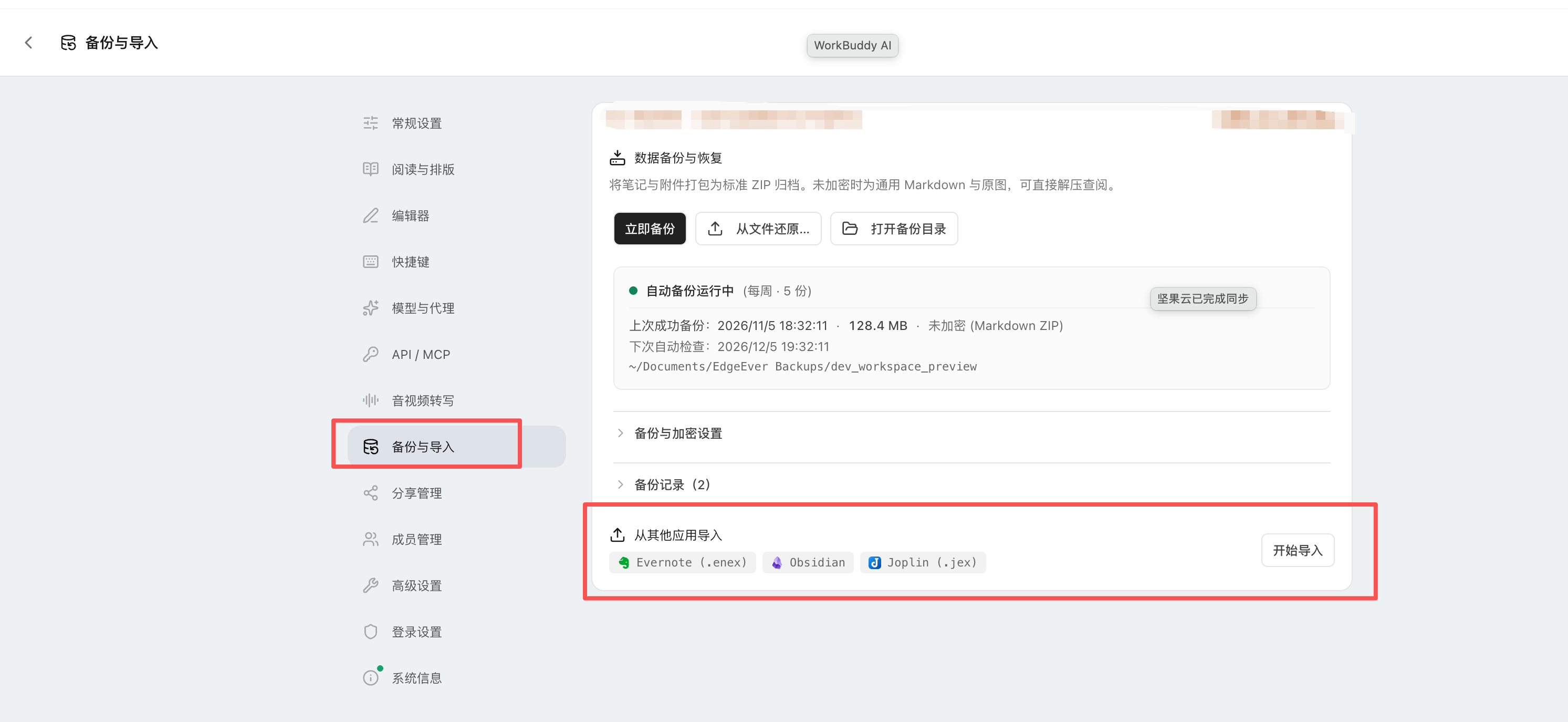
Select your source platform in the dialog, then drag and drop or browse files:
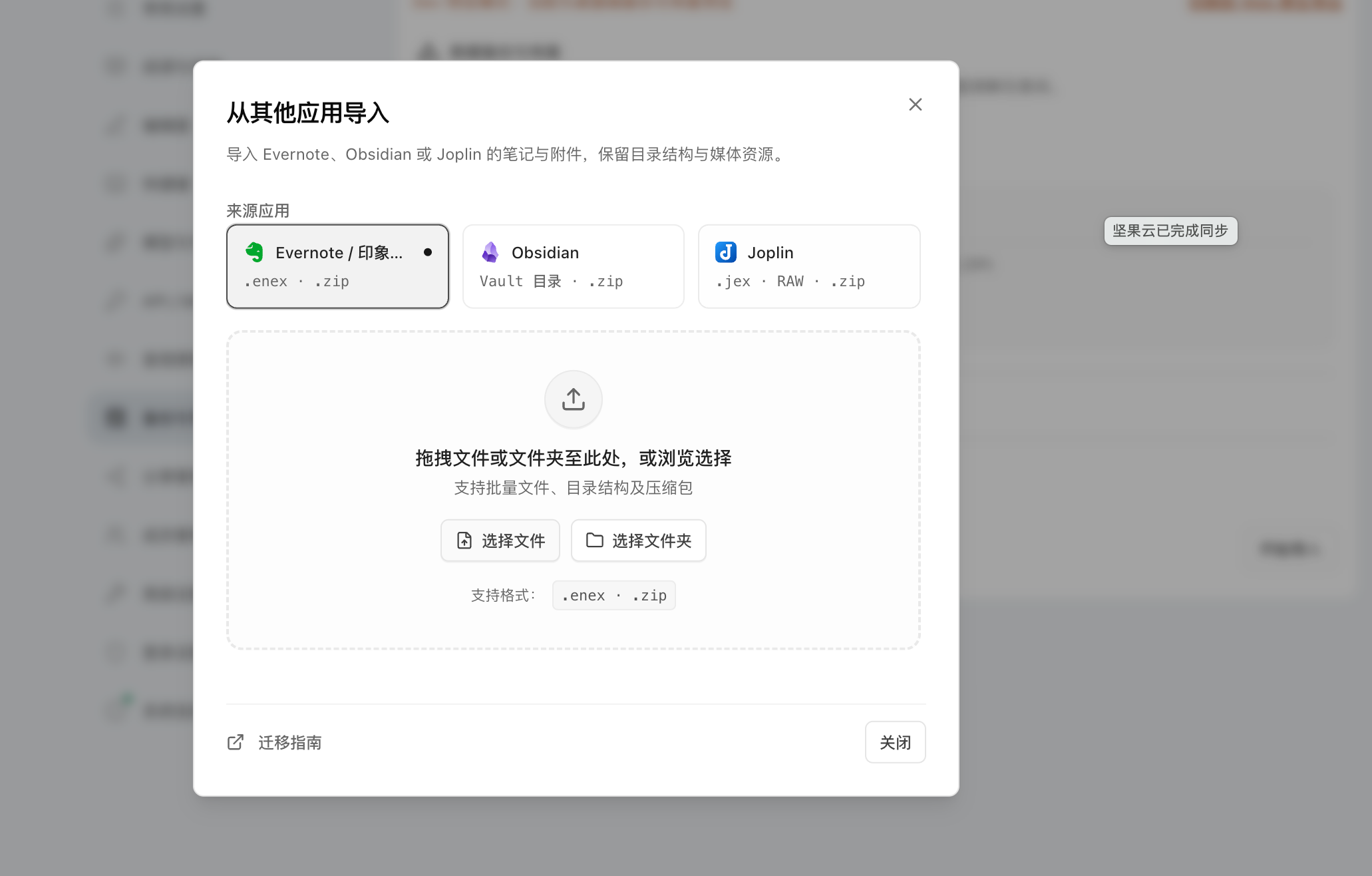
.enex (ensure tags and timestamps are checked)..enex files, folders containing ENEX files, or bundled .zip archives..zip.![[image.png]]), while ignoring .obsidian and .git..jex file or a directory zipped as .zip. Embedded resource attachments are resolved automatically.For platforms without a built-in GUI parser, use EdgeEver’s Remote MCP with your AI assistant (Claude Code, Cursor, Codex, WorkBuddy, etc.) via a single prompt.
In EdgeEver, go to Settings → API / MCP, generate a Token, and click Copy Full MCP Config to add it to your AI assistant.
Enable both Notion MCP and EdgeEver MCP in your AI assistant, then send:
You are my migration assistant. You now have access to both my Notion MCP and EdgeEver MCP services.
Please migrate all specified pages and databases from Notion to EdgeEver:
1. Call Notion MCP tools to read page contents (including titles, content blocks, creation times, tags, and properties);
2. Convert them into standard Markdown and nested structures, then call EdgeEver MCP tools to import them into a "Notion Migration" notebook;
3. When finished, summarize total notes imported, attachment status, and any formatting anomalies.Using the configured EdgeEver MCP, please migrate all notes from the local archive `/path/to/flomo-export.zip` into the `flomo` notebook in EdgeEver.
Requirements:
1. Retain note text, tags (#tag), historical creation timestamps, and embedded images;
2. Create notes incrementally, verify data integrity, and summarize total imported notes upon completion.Enable both Memos MCP and EdgeEver MCP in your AI assistant, then send:
You are my knowledge base migration assistant. You are connected to both my old Memos MCP and EdgeEver MCP.
Please migrate all historical memos to EdgeEver:
1. Call Memos MCP tools to fetch all memos (including text, tags, visibility, and timestamps) in batches;
2. Call EdgeEver MCP tools to create notes under a "Memos" notebook;
3. Upon full migration, report the total imported notes and verification summary.